
Alerts
Everything about how Hey Listen shows alerts - when they appear, what they look like, and how to interact with them.
The Alert Window
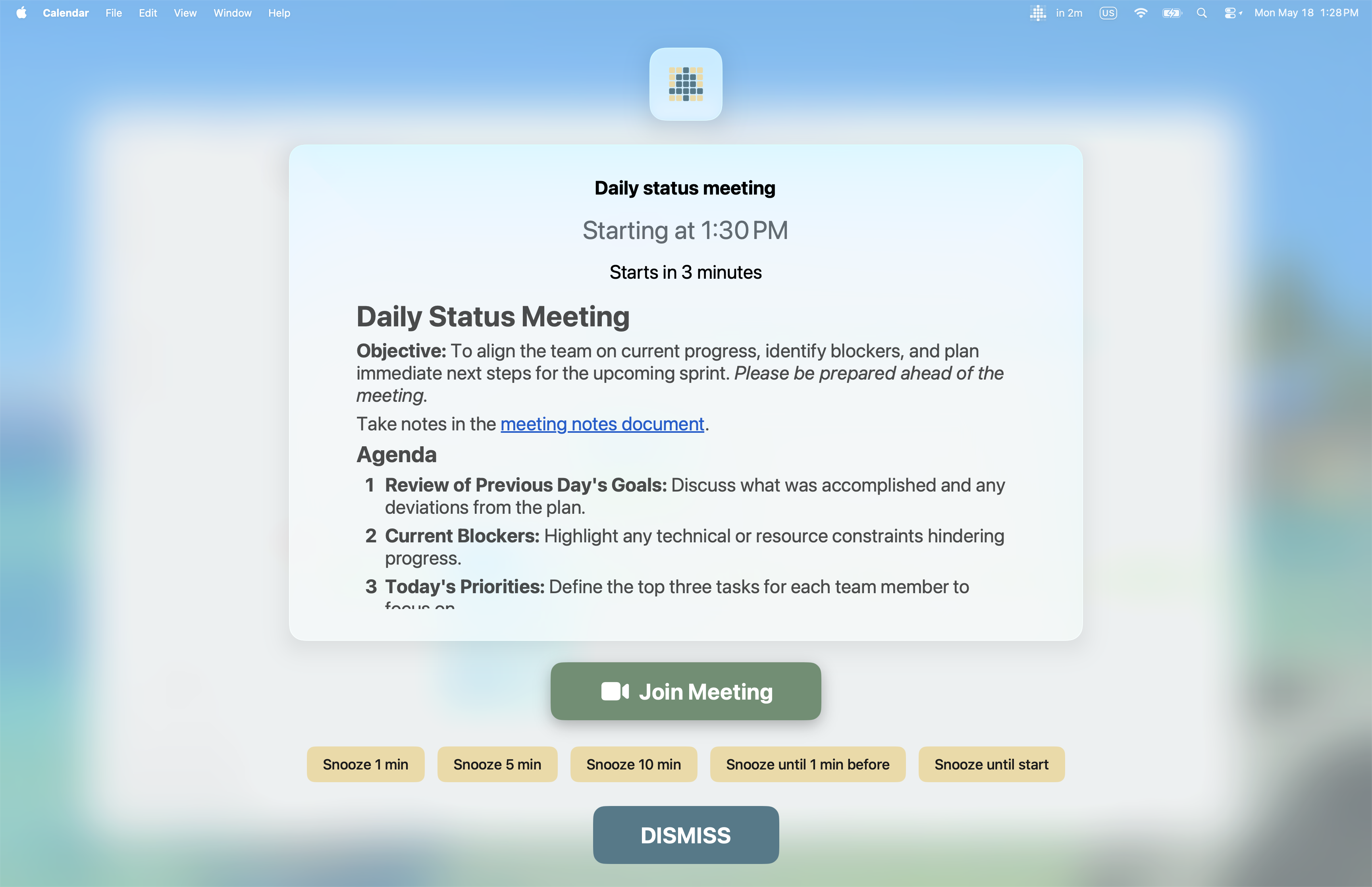
When it’s time for an alert, Hey Listen shows a full-screen overlay that’s impossible to miss even when you’re deep in focus. The alert shows:
- A large live countdown to the event’s start time (counting up once it has begun)
- The event title
- The start and end time
- A Join Meeting button, if a meeting link is detected
- Snooze buttons (under the Remind Me heading)
- A Dismiss button
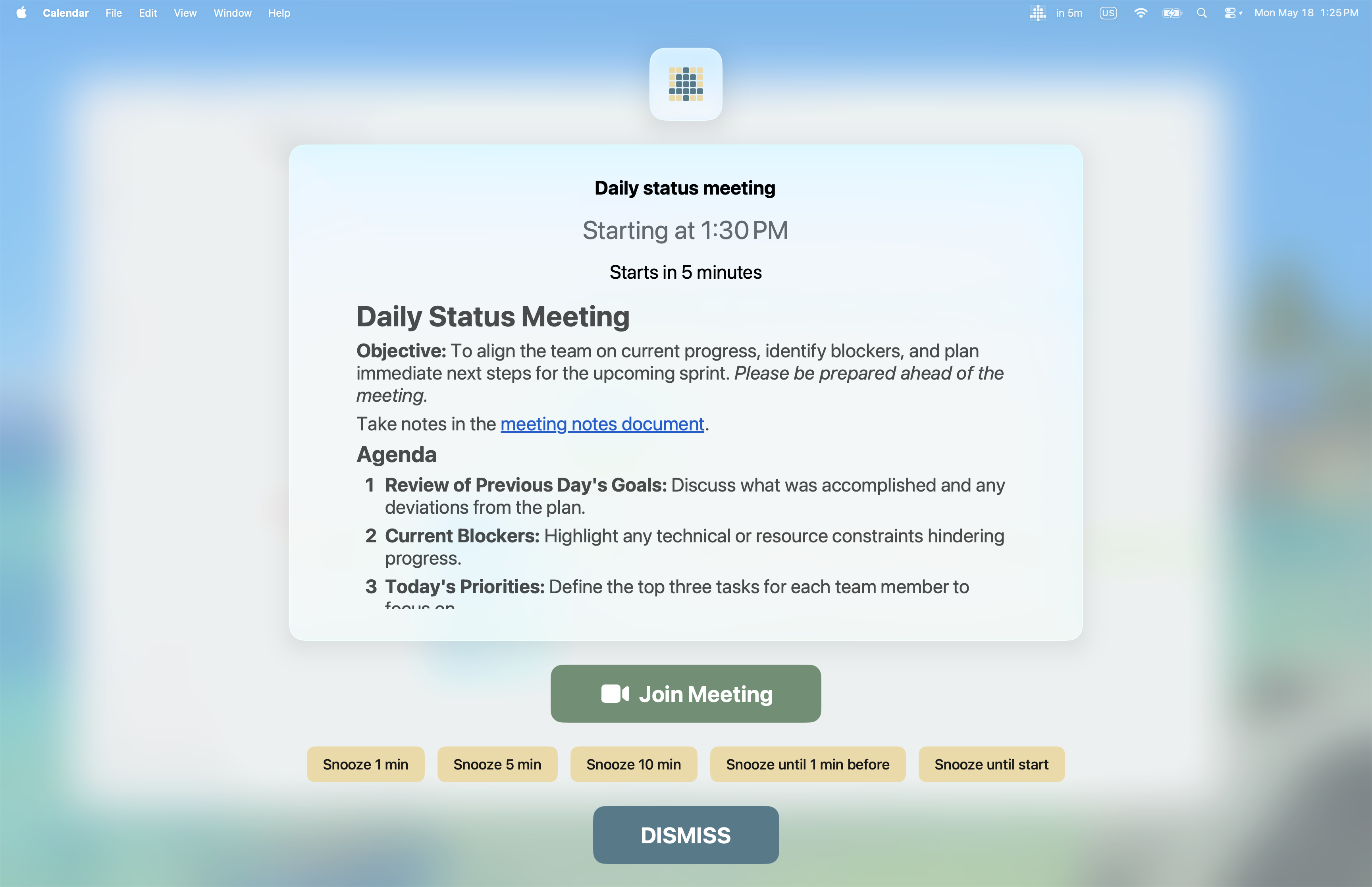
Every button shows its keyboard shortcut, so you can act on an alert without touching the mouse — see Keyboard Shortcuts below.
When you dismiss an alert, Hey Listen returns focus to whatever app you were using before.
Alert Timing
Global Alert Time
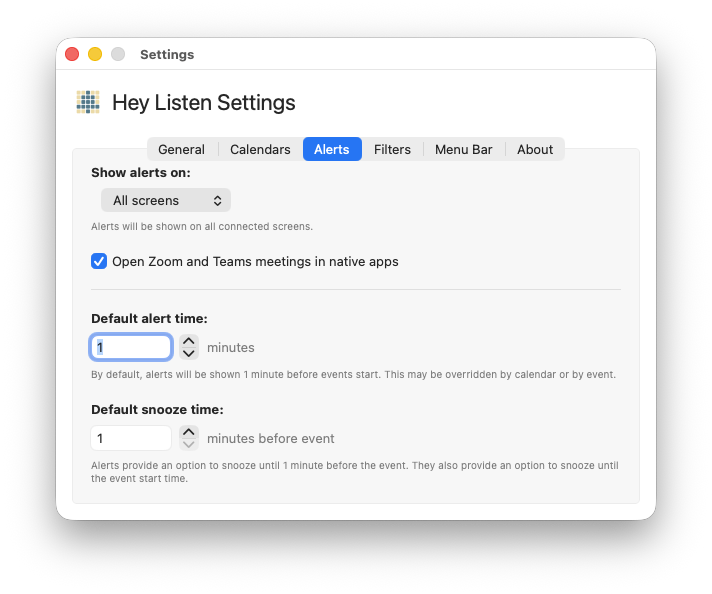
Set in Settings → Alerts. This is the default number of minutes before an event that an alert appears.
Per-Calendar Override
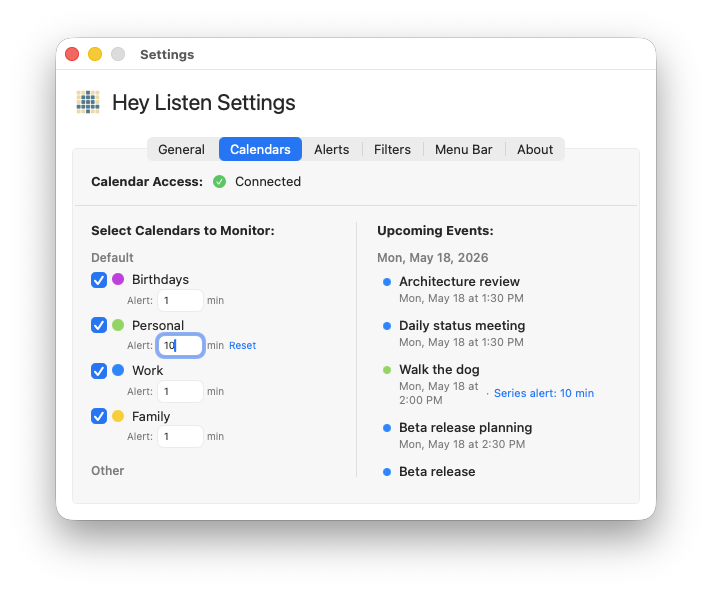
In Settings → Calendars, each selected calendar has an Alert field next to it. Setting this overrides the global time for all events in that calendar.
Per-Event and Per-Series Override
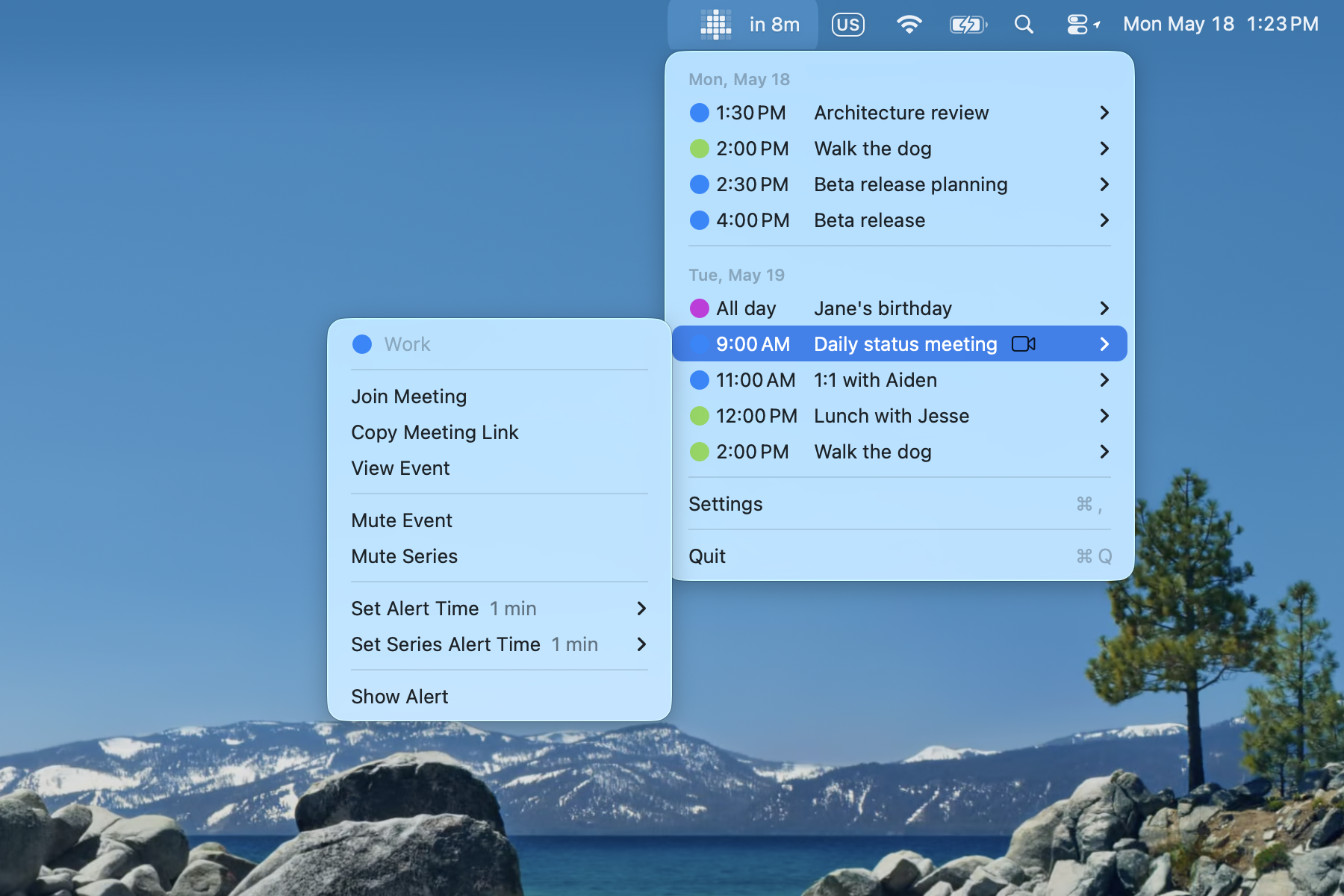
In the menu bar event list, click an event to open its submenu. The Set Alert Time submenu lets you set a custom alert time for just that event occurrence. For recurring events, Set Series Alert Time applies to all future occurrences in the series.
Priority Order
When multiple overrides exist, the most specific one wins:
- Per-occurrence override (set via Set Alert Time)
- Per-series override (set via Set Series Alert Time)
- Per-calendar override (set in Settings → Calendars)
- Global alert time (set in Settings → Alerts)
To remove an override and fall back to the next level, select Reset to Default in the Set Alert Time or Set Series Alert Time submenu.
Screen Mode
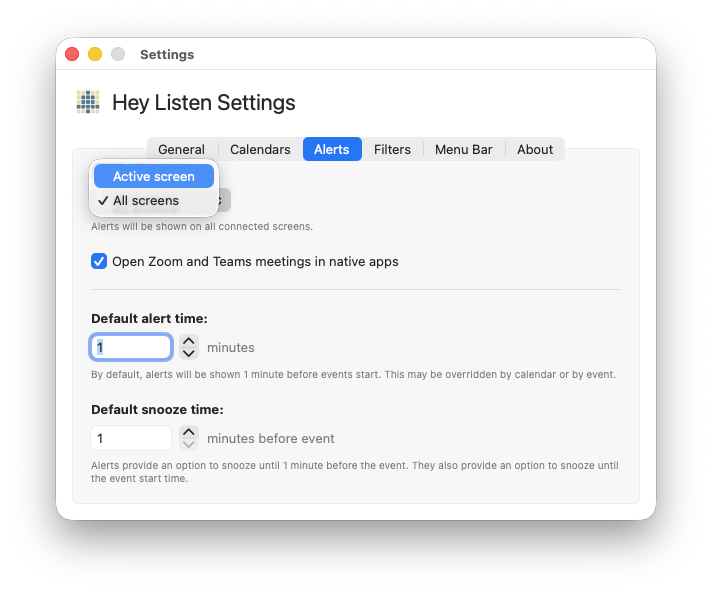
Choose where alerts appear using the Show alerts on picker in Settings → Alerts:
- Active screen: alert appears on whichever display your cursor is on
- All screens: alert appears on every connected display simultaneously
Join Meeting
If an event has a detectable meeting link (Zoom, Google Meet, Microsoft Teams, and others), a Join Meeting button appears prominently in the alert. Clicking it opens the meeting and dismisses the alert.
Open in Native Apps
By default, meeting links open in your browser. Toggle Open Zoom and Teams meetings in native apps in Settings → Alerts to open Zoom and Microsoft Teams links in their desktop apps instead.
Keyboard Shortcuts
Every action on an alert can be triggered from the keyboard, and the shortcut is shown right on each button. The defaults are:
| Action | Default shortcut |
|---|---|
| Snooze — In [time] | ⌘J |
| Snooze — [N] min before | ⌘K |
| Snooze — at event start | ⌘L |
| Dismiss | Esc |
| Join Meeting | ⌘↩ |
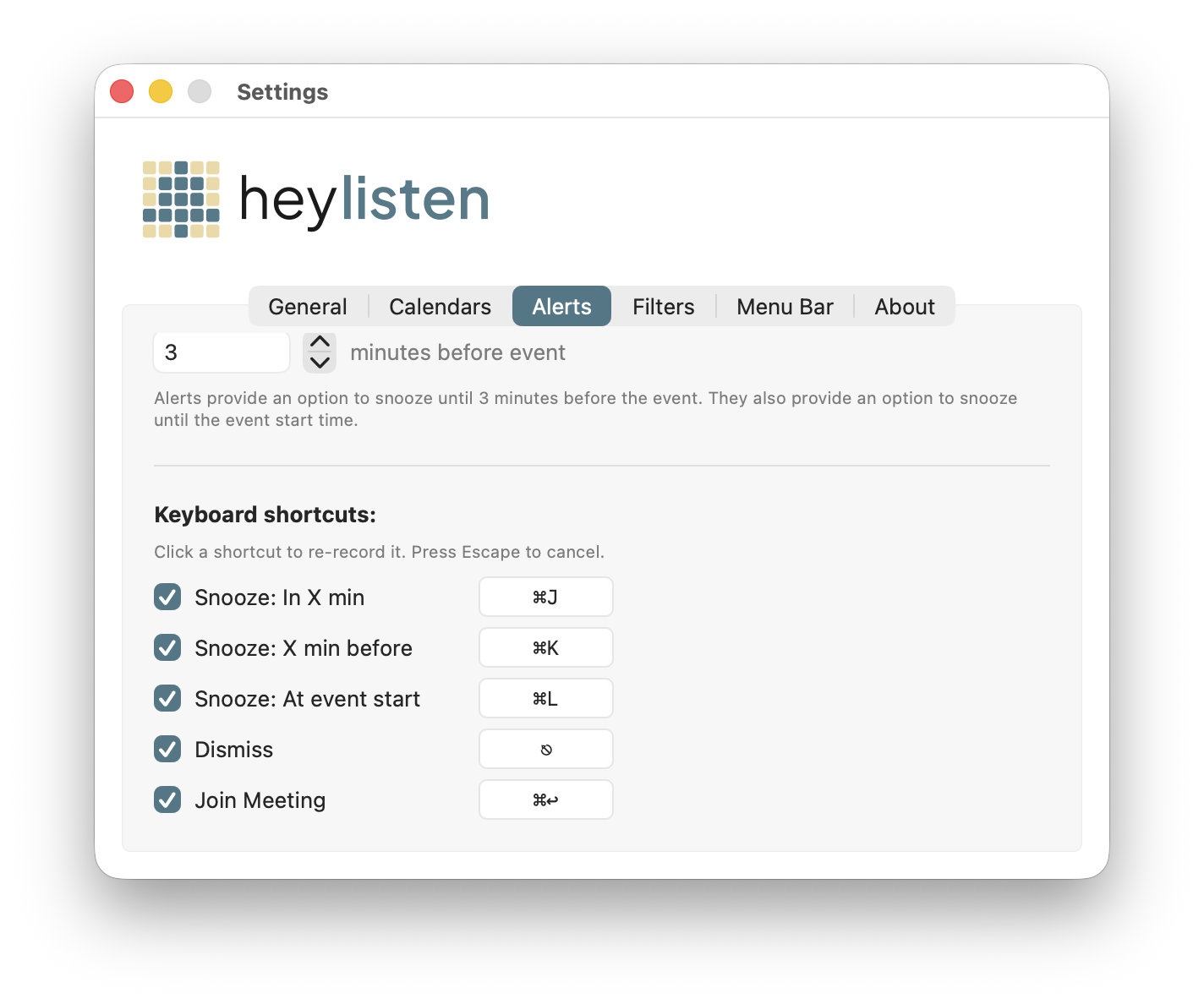
You can change or disable any of these in Settings → Alerts under Keyboard shortcuts. Toggle a shortcut off to disable it, or click the shortcut to re-record it — press the new key combination, or press Escape to cancel.
Missed Alerts
If your Mac was asleep or the app wasn’t running when an alert was scheduled, the alert fires as soon as you wake up or relaunch Hey Listen, provided the event hasn’t ended yet.
Alert Preview
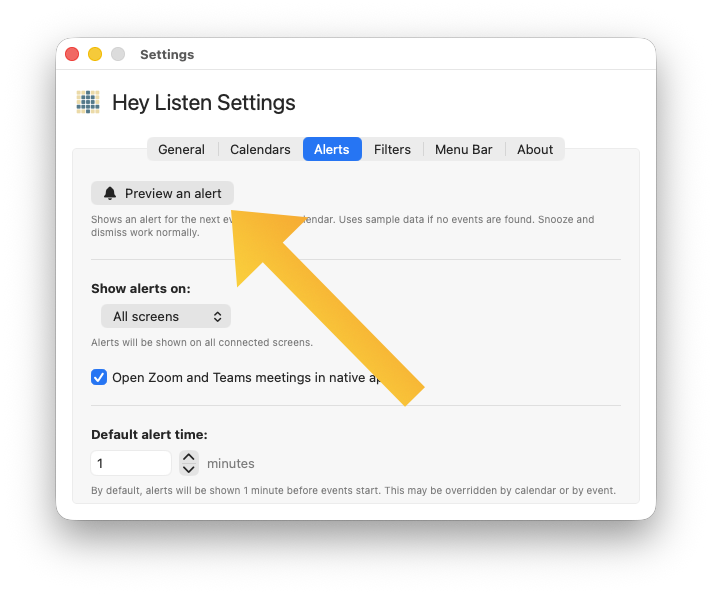
Click Preview an alert at the top of Settings → Alerts to trigger a demo alert. If you have upcoming events on selected calendars, Hey Listen uses a real event; otherwise it shows a placeholder. Snooze and dismiss work normally in the preview.