

Muting
Muting lets you silence alerts for events you don’t need reminders for — without removing them from your calendar or deselecting their calendar entirely.
Mute a Single Event
To silence the alert for one specific occurrence of an event, open the menu bar, click the event to open its submenu, then click Mute Event.
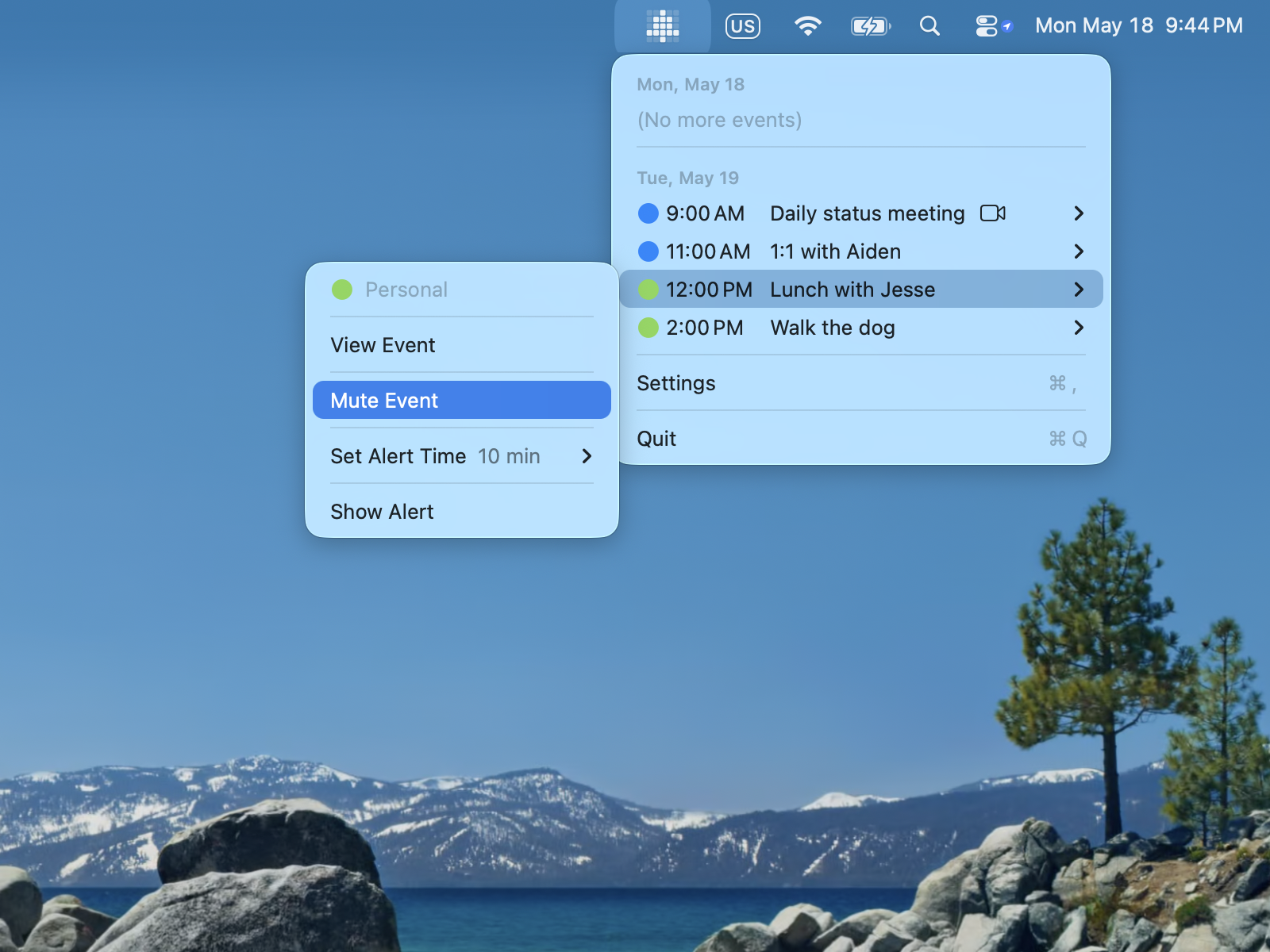
Muted events appear grayed out in the menu bar event list as a reminder that their alerts are silenced.
Mute an Entire Series
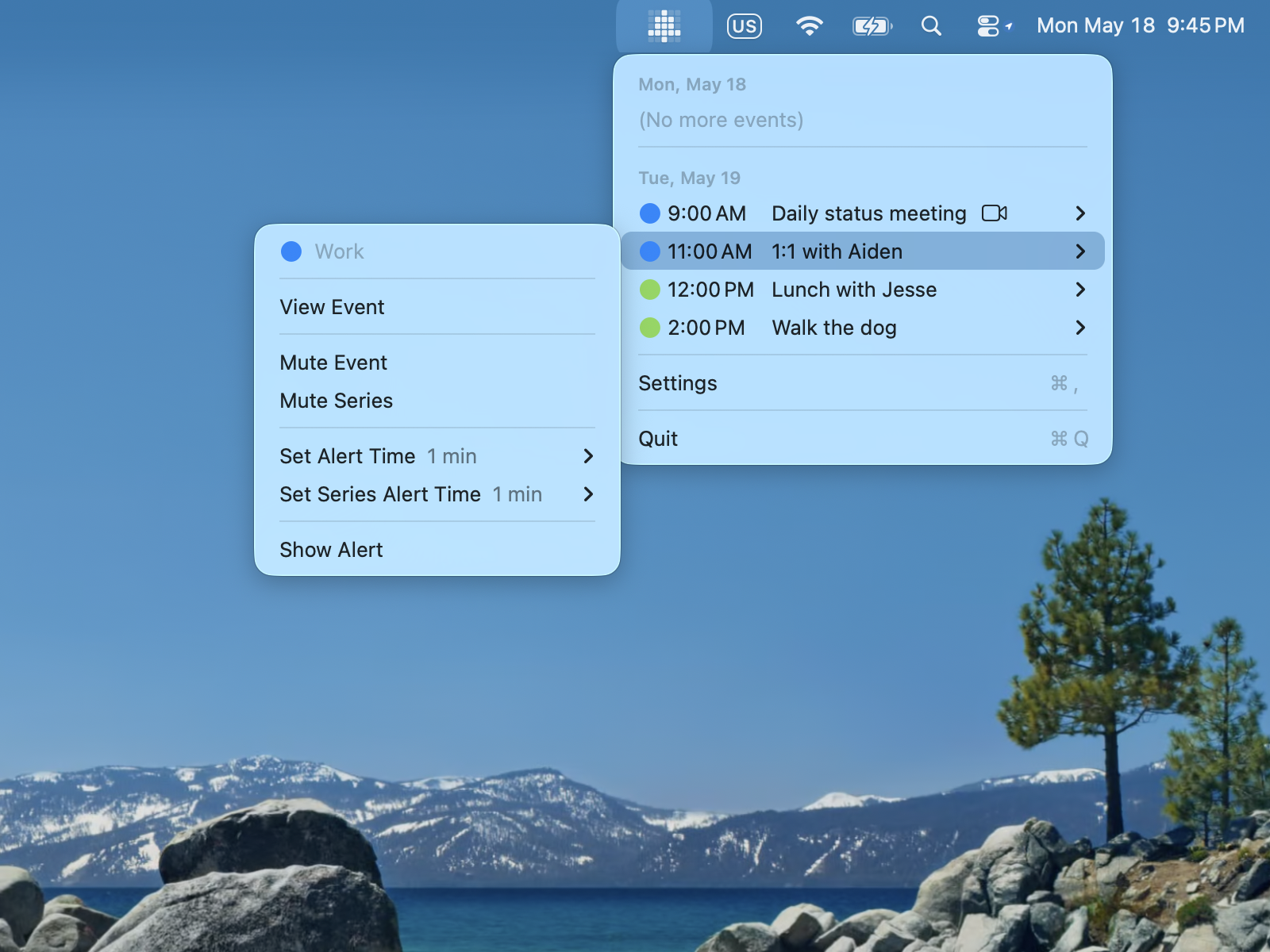
For recurring events, you can mute all future occurrences at once. Open the event’s submenu in the menu bar and click Mute Series.
Mute by Title Pattern
If there are categories of events you never want alerts for — like “Focus Time” blocks, birthday reminders, or “No Meeting” holds — you can add a title pattern to mute any event whose title contains that text.
Go to Settings → Filters and find the Mute events by title section:
- Type the text to match (case-insensitive) into the field
- Press Enter or click Add
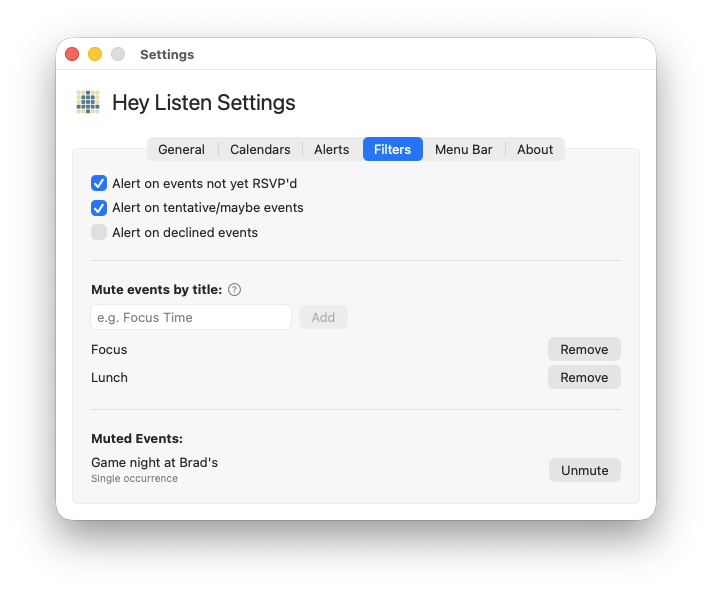
Any event whose title contains your pattern will be silently skipped — no alert will appear. The match is a simple substring search; there’s no need for wildcards.
Examples:
Focus Time— mutes any event with “Focus Time” in the titleBirthday— mutes birthday calendar entriesLunch— mutes lunch blocks
To remove a pattern, click Remove next to it.
Unmuting
Unmute from the menu bar
Click the event in the menu and select Unmute Event or Unmute Series.
Unmute from Settings
Open Settings → Filters and scroll to the Muted Events section. Muted series and individual occurrences are listed here. Click Unmute next to any item to restore its alerts.
Muting vs. Filtering
Muting is per-event or per-title — you’re silencing specific events you’ve identified.
Filtering (all-day events, RSVP status, work hours) applies broad rules to whole categories of events. Use filtering when you want to exclude a class of events by rule, and muting when you want to handle specific events individually.