

Menu Bar
Customize what Hey Listen shows next to its icon and in the dropdown menu.
Menu Bar Label
Hey Listen can display information about your next meeting directly in the menu bar, next to its icon. Configure this in Settings → Menu Bar using the Menu bar text picker.
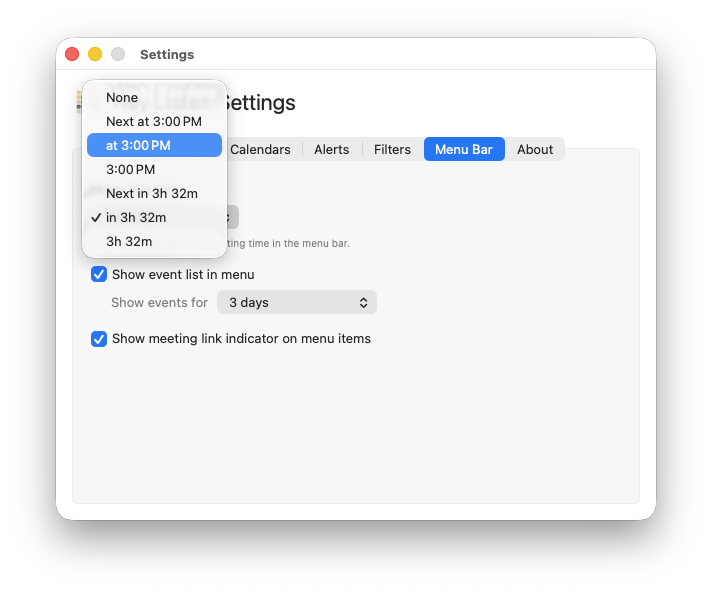
Label formats
| Format | Example |
|---|---|
| None | (icon only) |
| Next at [time] | Next at 3:00 PM |
| at [time] | at 3:00 PM |
| [time] | 3:00 PM |
| Next in [duration] | Next in 3h 32m |
| in [duration] | in 3h 32m |
| [duration] | 3h 32m |
In-progress events
When a meeting is currently in progress and your next event doesn’t start for at least 10 minutes, the label automatically switches to show time remaining in the current event — for example, 14m left or 1h 2m left.

Event List
When Show event list in menu is enabled (the default), clicking the Hey Listen icon shows your upcoming events grouped by day. Toggle this off in Settings → Menu Bar if you only want the icon and label.
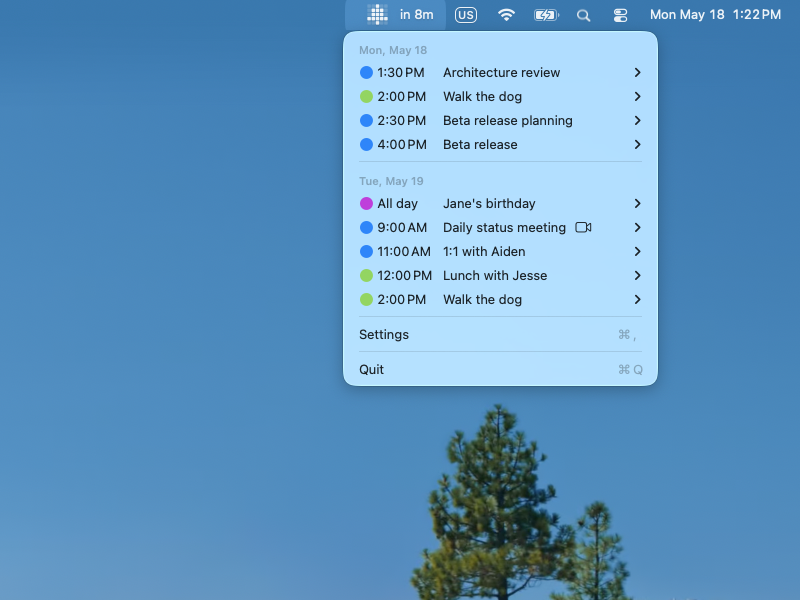
Event range
Use the Show events for picker to control how far ahead the event list looks. Options range from Today only up to 7 days.
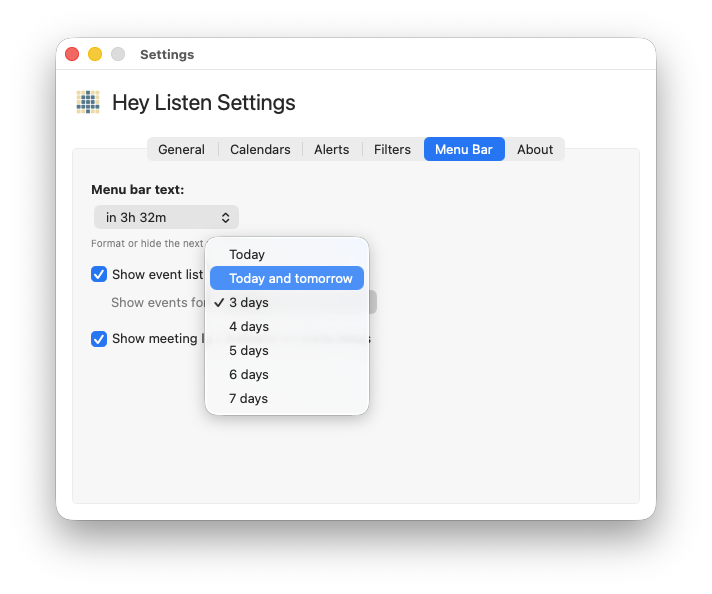
Events for today that have already ended are hidden from the list.
Calendar Color Dots
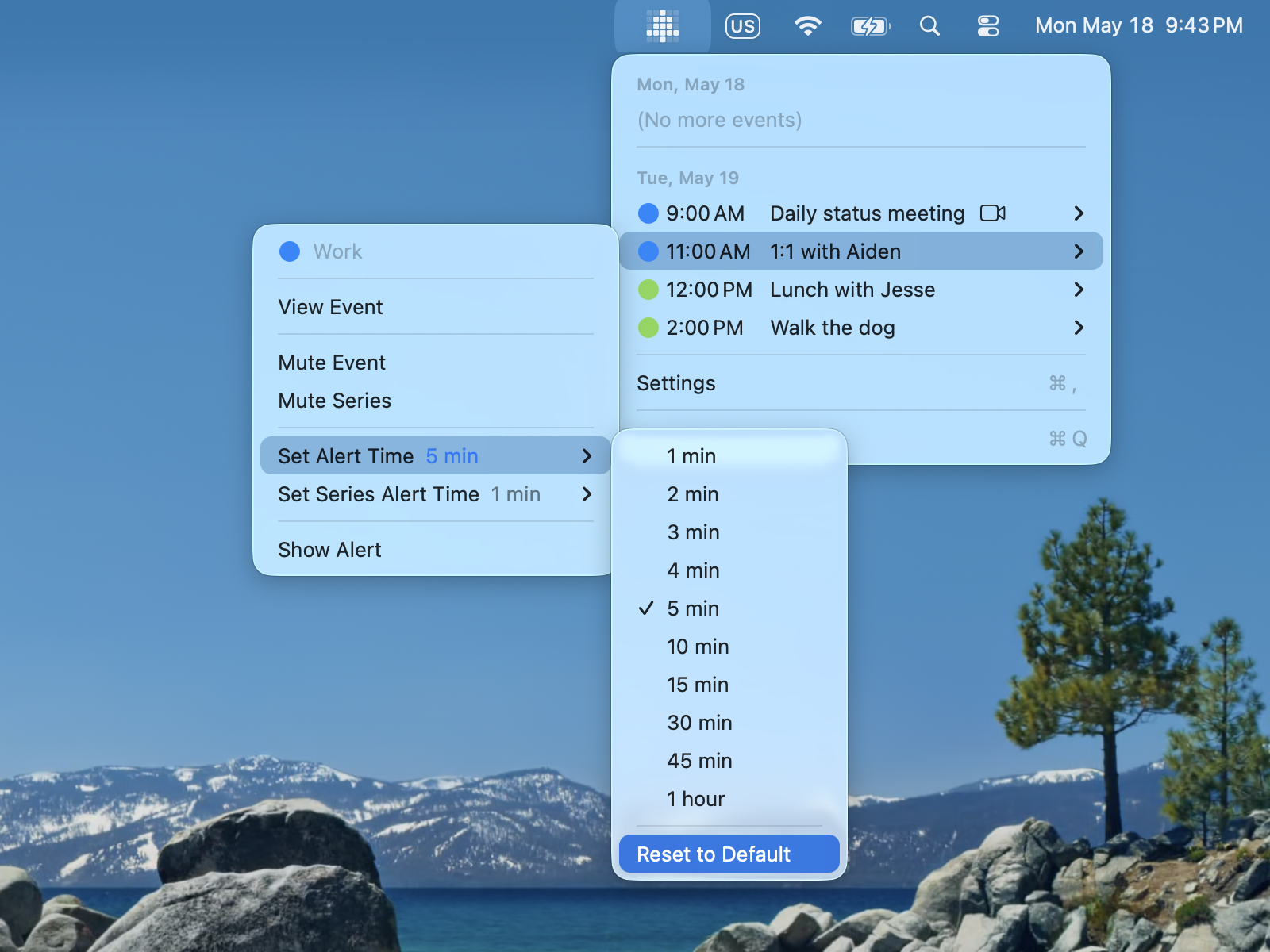
When two or more calendars are selected for monitoring, each event in the menu list shows a color dot matching its calendar. This helps you tell events apart at a glance when multiple calendars are active.
Event Submenus
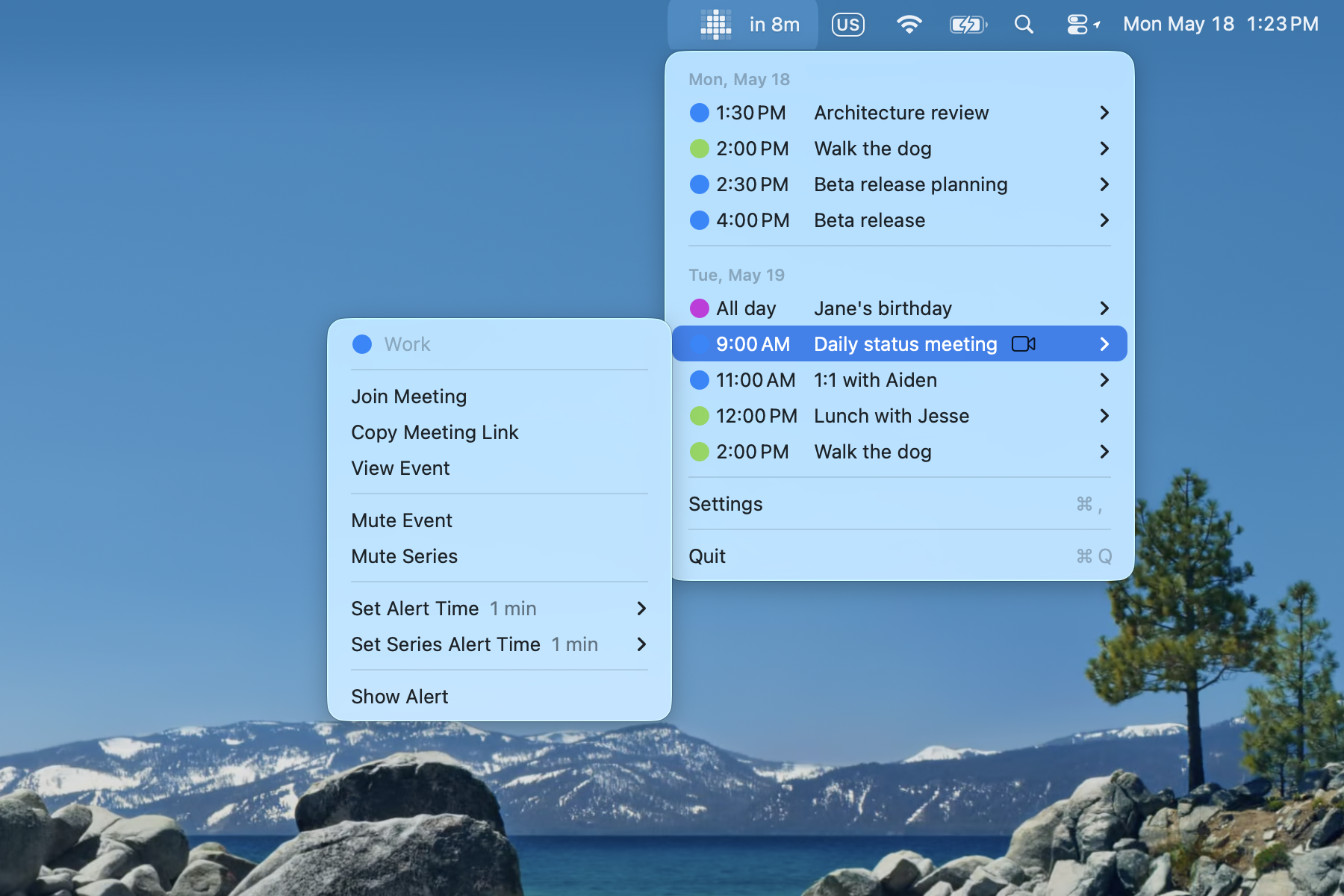
Click any event in the menu to open its submenu. From here you can:
Join or copy a meeting link
If a meeting link is detected, Join Meeting opens it immediately. Copy Meeting Link puts the URL on your clipboard.
View event details
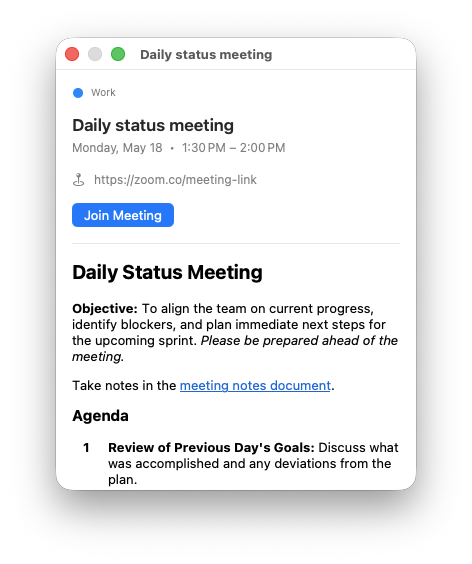
View Event opens a detail panel with the full event title, time, location, description, and attendee list.
Mute or unmute
Mute Event silences the alert for this specific occurrence. Mute Series silences all future occurrences of a recurring event. These options also appear as Unmute Event and Unmute Series when the event is already muted.
See Muting for more.
Set a custom alert time
Set Alert Time overrides the alert timing for this single event occurrence. For recurring events, Set Series Alert Time applies the override to the whole series.
A checkmark shows the currently active time. The label shows whether the time is a custom override (shown in accent color) or the inherited default (shown in gray).
Select Reset to Default to remove the override.
Time Format
The time format used throughout the app — in the menu bar label, event list, and alert window — is set in Settings → General.
| Option | Example |
|---|---|
| System Default | follows macOS locale setting |
| 12-hour | 3:00 PM |
| 24-hour | 15:00 |