

Calendars
Choose which calendars Hey Listen monitors and set per-calendar alert timing.
Granting Calendar Access
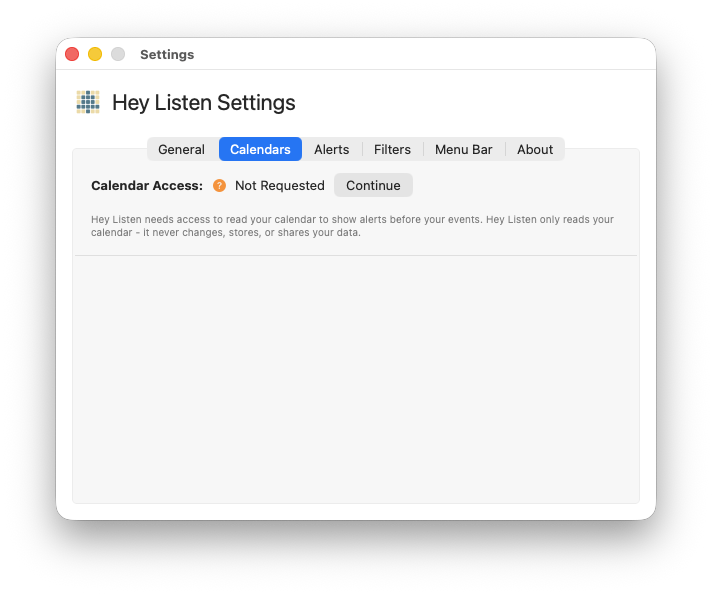
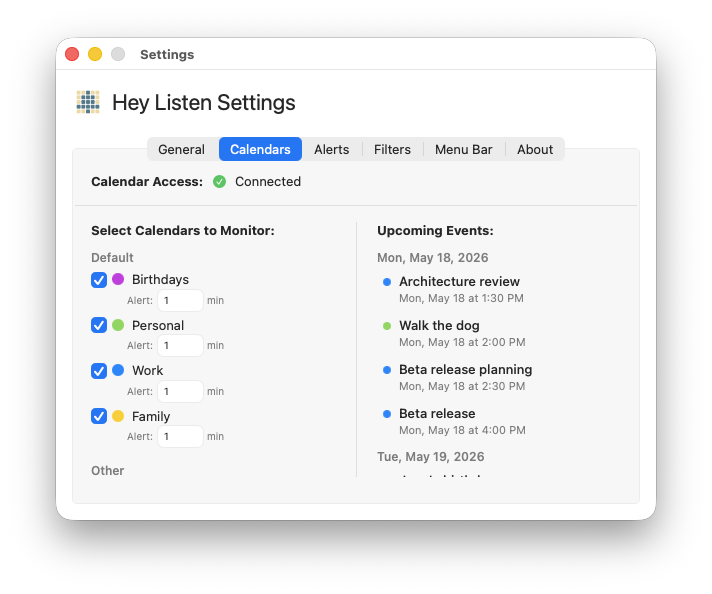
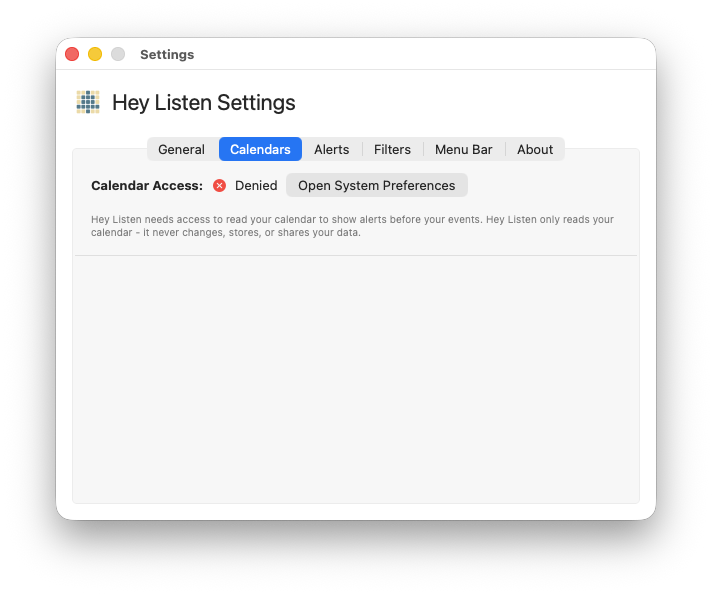
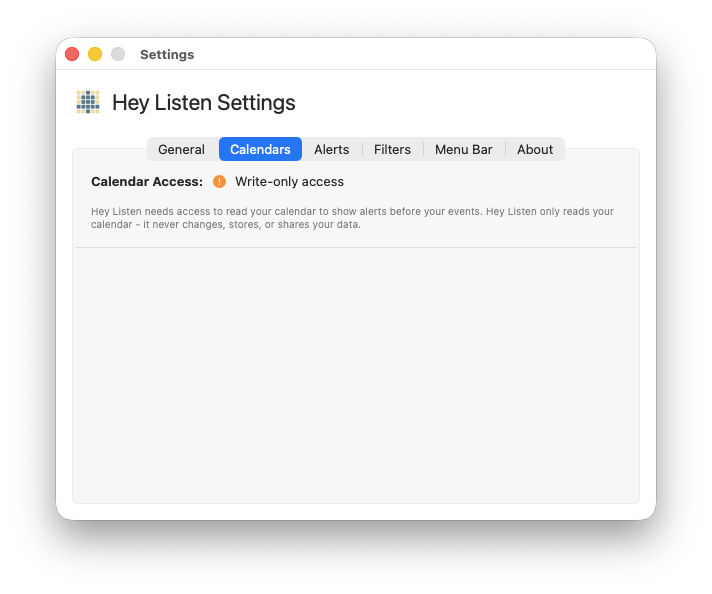
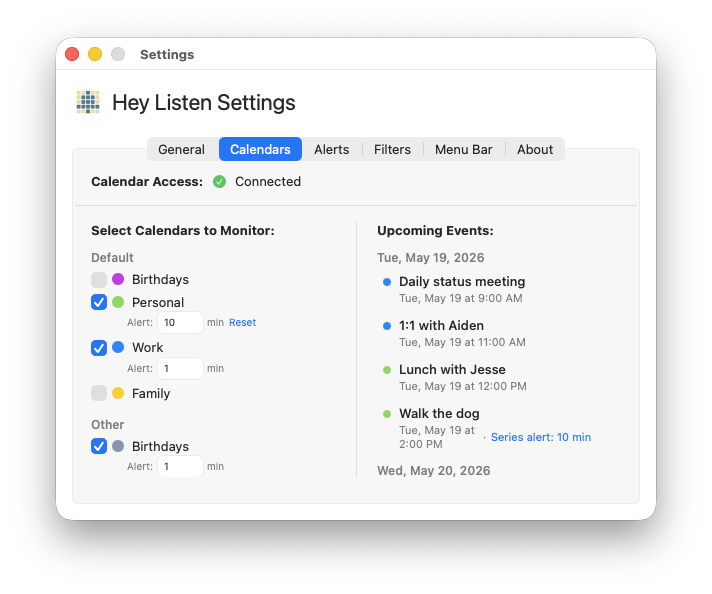
Open Settings → Calendars. The top of the tab shows your current calendar access status:
| Status | Meaning |
|---|---|
| ✅ Connected | Full access granted - Hey Listen can read your calendars |
| ❌ Denied | Access was denied; see below to re-enable |
| ⚠ Write-only access | Unusual state; Hey Listen needs read access |
| 🔶 Not Requested | Access hasn’t been requested yet |
To grant access: Click Continue when status is “Not Requested”, then click Allow in the macOS permission prompt.
To re-enable access after denying: Click Open System Settings and toggle Hey Listen on under Privacy & Security → Calendars.
Selecting Calendars
With access granted, your calendars appear in a list on the left side of the Calendars tab. Calendars are grouped by account — iCloud, Google, Outlook, Exchange, and other CalDAV sources all appear here if you have them configured in macOS Calendar.
Toggle a calendar on to include it in Hey Listen’s monitoring. Toggle it off to exclude it.
Per-Calendar Alert Time
When a calendar is toggled on, an Alert field appears below its name. This lets you override the global alert time for events in that specific calendar.
- If the field matches your global alert time, it shows the inherited value without special marking.
- If you’ve set a custom value, a Reset link appears next to the field — click it to remove the override and return to the global default.
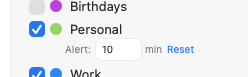
Example: Your global alert time is 5 minutes, but your “Work” calendar contains events you always need more notice for. Set the “Work” calendar’s alert time to 15 minutes.
Upcoming Events Preview
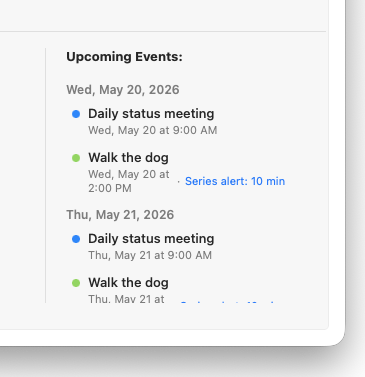
The right panel of the Calendars tab shows a live preview of upcoming events from your selected calendars, grouped by day. This lets you confirm you’ve selected the right calendars and see exactly which events will trigger alerts.
Scroll to the bottom to load more days automatically.
Calendar Access and Privacy
Hey Listen reads your calendar data locally via Apple’s EventKit framework. Calendar data is never copied, stored, or transmitted — it’s read in real time and discarded when the app is not actively using it. See the full Privacy Policy for details.